
25 Gmail Search Operators for Productivity
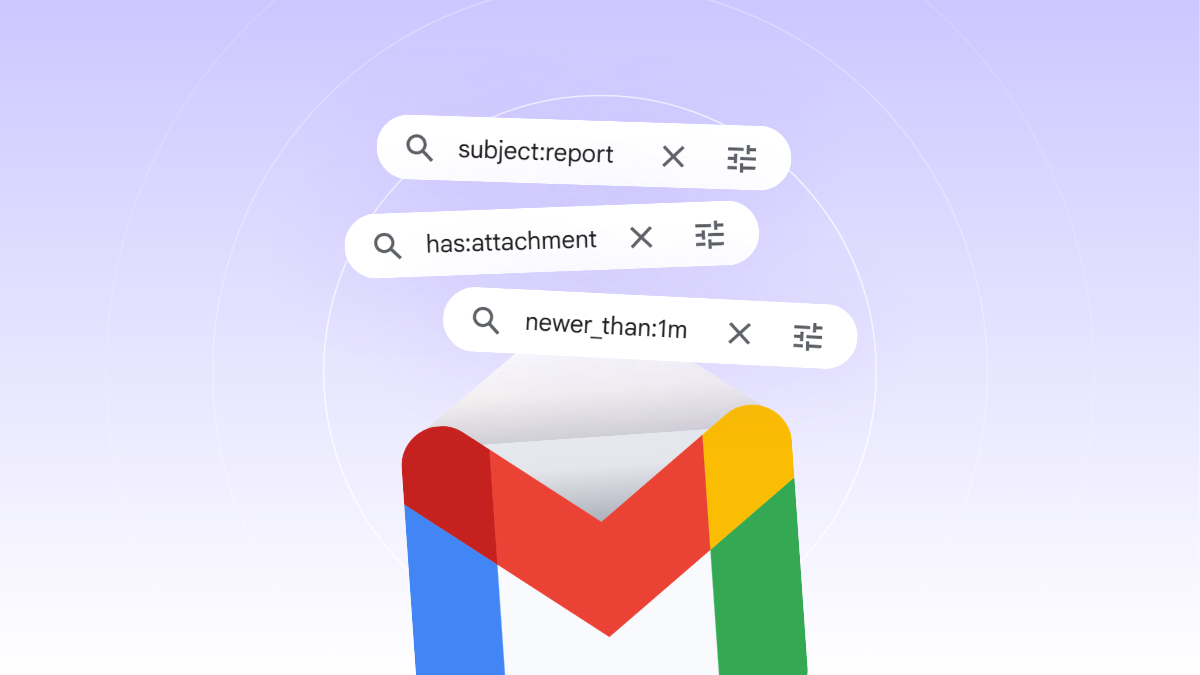
Still playing hide-and-seek with your emails?
We’ve all been there. An important email is somewhere in your inbox, but the moment you actually need it, it’s nowhere to be found. It’s even worse when that email contains a critical contract or a time-sensitive report. This is where Gmail search operators come to the rescue.
While 1.8 billion people use Gmail worldwide, surprisingly few use search operators to their full potential. For busy professionals for whom every second counts, we’ve rounded up 25 essential search operators to help you master your inbox.
- A comprehensive list of Gmail Search Operators
- Real-world use cases for maximum efficiency
- Advanced: How to overcome the limitations of search operators
- Anyone who needs to access and retrieve complex data in real time
- Professionals in Real Estate, Legal, Hospitality, and Research fields
- Sales Representatives and Customer Support Agents
What are Gmail Search Operators?
Gmail search operators are special characters and commands used to filter your search results. Instead of manually digging through your inbox, you can use these operators to find exactly what you need with pinpoint accuracy. You can also combine operators for more precise searches.
While Google lists about 50 different operators in their official documentation, mastering just a few can fundamentally change how you work.
Why should you use them?
Entering a simple keyword in your search bar often results in a flood of irrelevant emails, making it harder to find the right one. Gmail operators solve this clutter.
Imagine you need to grab the latest version of a slide deck from a partner just minutes before a big meeting. Or perhaps you need to bundle all receipts and invoices from the past month for expense reporting. With operators, you can even track down a technical consultation email sent six months ago with a 30MB attachment, even if you can’t remember the sender’s name.
How to use Gmail Search Operators

Using them is simple. Just type the operator directly into the search bar at the top of your inbox!
- No spaces: Always keep the operator and the value together (
from:john). - Combining filters: Use a space between different operators to combine them. Results will only show if they meet all criteria.
- Use quotes: For multi-word phrases, use double quotes (
filename:"final report").
25 Essential Gmail Search Operators for Immediate Use
Basic Filters
- from: – Emails from a specific sender (
from:"John Doe") - to: – Emails sent to a specific recipient (
to:"Legal Department") - subject: – Emails with specific keywords in the subject line (
subject:invoice) - cc: – Emails where you or someone else was copied (
cc:me) - bcc: – Emails where you or someone else was blind copied (
bcc:admin)
Attachment & Size Filters
- has:attachment – All emails that include any attachment
- filename: – Attachments with a specific name or file extension (
filename:pdf) - has:drive / has:document / has:spreadsheet / has:presentation / has:youtube / has:image – Emails containing Google Drive links, Docs, Sheets, Slides, YouTube links, or embedded images
- larger: / smaller: – Emails with attachments over or under a certain size (
larger:10msmaller:1m)
Time & Date Filters
- after: / before: – Search for emails received after or before a specific date (
after:2026/01/01before:2025/12/31) - older_than: / newer_than: – Search for emails based on a time period (
older_than:2ynewer_than:3d)
Advanced Logic & Precision
- AND – Find results that match all specified criteria, default when using multiple operators
- OR / { } – Find results that match at least one of the conditions (
subject:contract OR subject:agreement) - ( ) – Group multiple operators together (
(from:joey OR from:aya) newer_than:1m) - – (Minus) – Exclude specific criteria (
-from:@linkedin.com) - ” ” – Search for an exact phrase (
"licensing policy")
Status & Categorization
- label: – Search within a custom label you created (
label:conference) - category: – Search by Gmail’s automatic category tabs (
category:Promotions) - list: – Search for emails sent via a specific mailing list (
list:outbound-leads) - is:read / is:unread – Filter by read or unread status
- is:starred / is:snoozed / is:muted – Search for starred, snoozed, or muted messages
- in:anywhere – search all mail including Spam & Trash
- in:archive – search specifically in the Archive
- is:important – Search emails Gmail has flagged as important
- has:userlabels / has:nouserlabels – Search for emails that either have or don’t have labels
- has:yellow-star and similar – Search for emails with a specific star color
Real-World Gmail Search Operator Examples
Here are a few scenarios to find specific emails instantly:
- Finding Recent Unread Reports with Large Attachments: Search for unread emails from the last 7 days that have a PDF attachment larger than 10MB.
is:unread has:attachment filename:pdf larger:10m newer_than:7d - Finding CC’d Emails with Drive Links by Label: Find emails where you were CC’d, labeled “conference,” containing a Google Drive link, and excluding promotions.
cc:me label:conference has:drive -category:Promotions - Recovering Old Emails from a Specific Domain: Search for important emails from a specific domain received over 2 years ago, including those in Spam or Trash.
from:@company.com older_than:2y in:anywhere is:important - Finding Google Docs shared via mailing lists: Find Google Docs sent by an admin through the “outbound-leads” mailing list.
from:admin list:outbound-leads has:document
The Limitations of Search Operators
As useful as they are, Gmail search operators have their limits. Memorizing dozens of operators isn’t easy, and combining them can feel complex and exhausting. Phrase matching can be imprecise. If the wording isn’t exact, results may come up empty. But the biggest problem is this: What if the file you’re looking for isn’t in Gmail at all, but in Notion, Confluence, or Dropbox? In that case, your Gmail search won’t help at all.
Ultimately, the goal of using operators is to maximize efficiency by finding data quickly. If operators are becoming a burden, it’s time for a better solution. That solution is Refinder.
No Complex Search Operators Needed, Just Ask
To see the difference, take one of the examples above.

To find unread emails from the last 7 days with a PDF attachment larger than 10MB, you’d need to type:is:unread has:attachment filename:pdf larger:10m newer_than:7d
With Refinder, you just ask:
“Find unread emails from the last 7 days with a PDF attachment larger than 10MB.”
No syntax. No memorization. Just a plain question.
Refinder offers a revolutionary RAG-based integrated search. Connect Gmail, Google Chat, Drive, Notion, Dropbox, and Confluence all in one place. Now, you don’t need to memorize a single operator. Just ask one simple question to find exactly what you need.
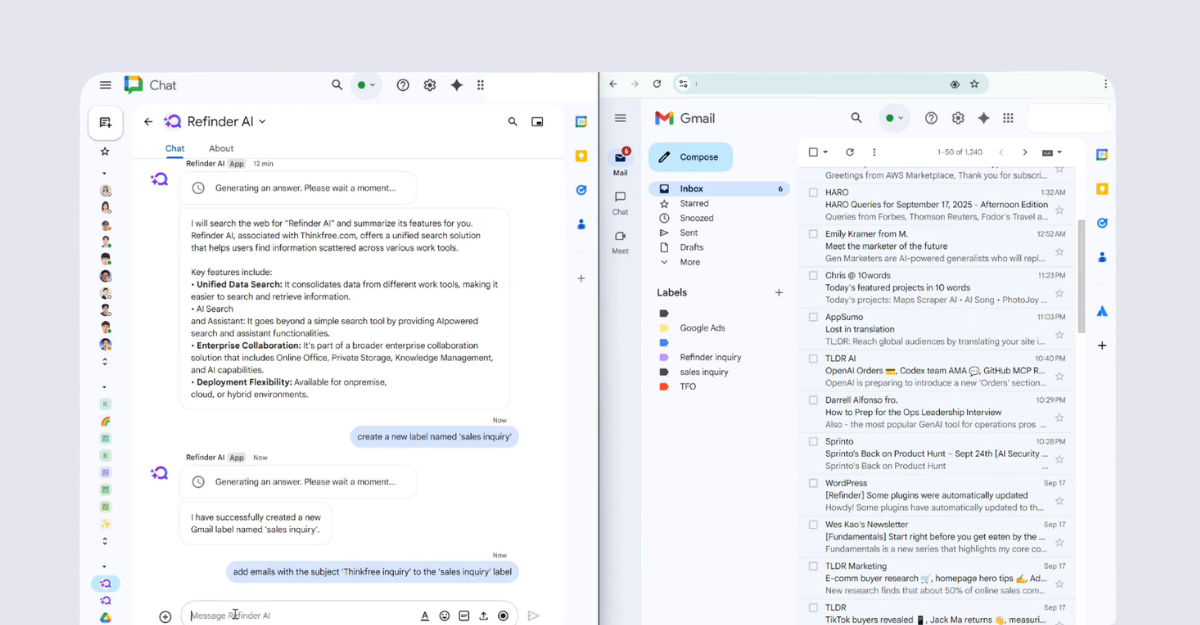
You can stop toggling between dozens of tabs. Whether you’re working in Slack or Google Chat, you can issue commands and even assign labels to your Gmail inbox instantly.
Experience a seamless workflow with Refinder. It’s the most convenient and accurate way to find the data you need, allowing you to focus on what really matters.
👉 Ready to transform your search? Experience Refinder AI.
Like this post? Share with others!